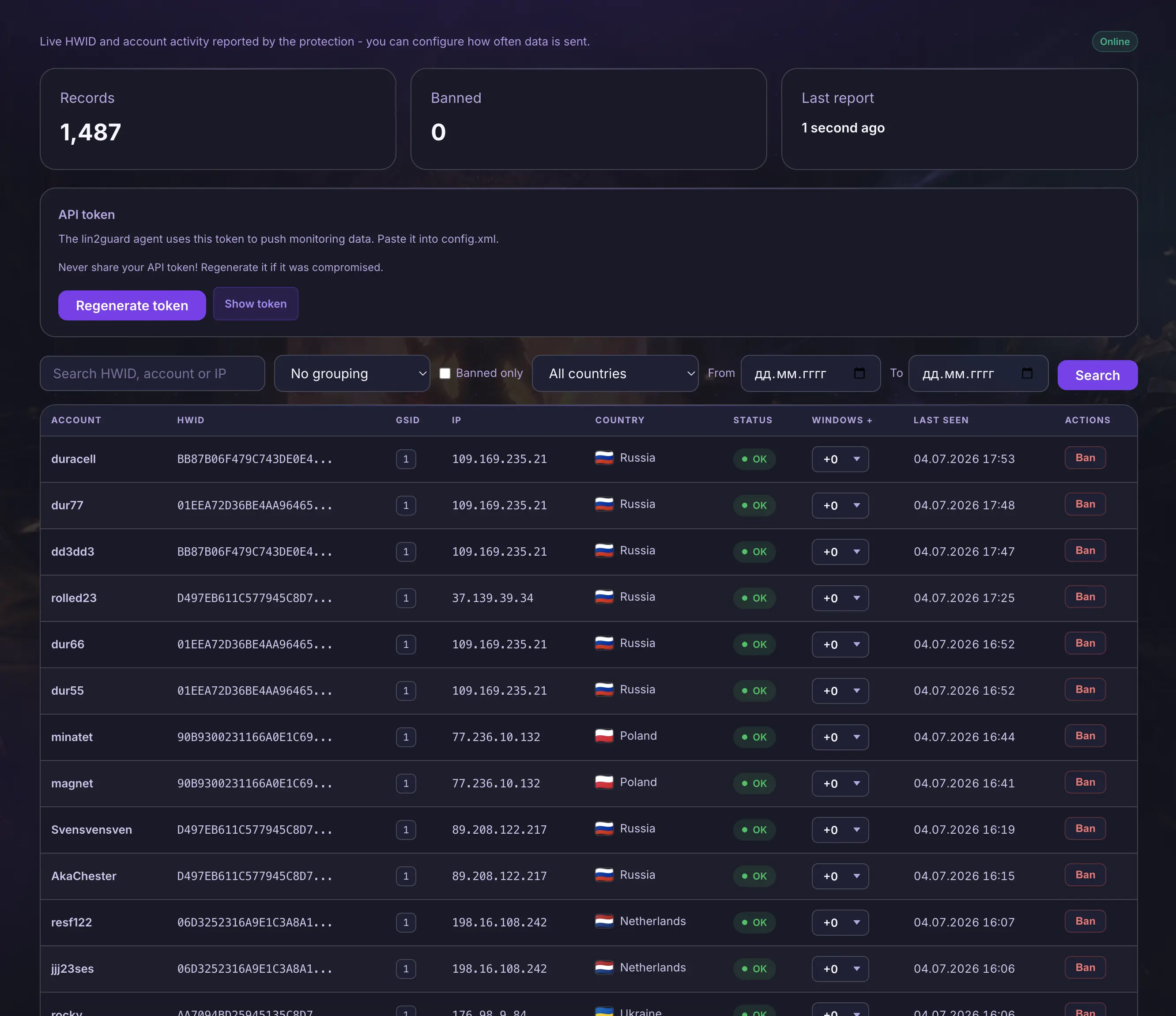
A live player-activity dashboard in the protection cabinet: HWID, accounts, IP and country in real time, with one-click ban and window grants.
Server monitoring has been added to the protection cabinet, available on Premium+ plans.
Total records, banned count, time of the last report and an Online/Offline indicator — based on how fresh the data from the protection is.
In the protection config you can enable monitoring, paste the token and change how often data is sent to the cabinet.
File hash verification: Lin2Guard blocks entry with modified .exe, .dll or resources. The FileHasher utility builds the list of checked files in a minute.
FileHasher is a standalone utility that scans the client folder, computes file checksums and generates files.xml. Guard distributes this list to players and verifies the hashes on every login: if even one protected file differs from the reference, the client cannot connect to the server.
Hash verification closes off client modifications: a swapped l2.exe, third-party .dll files (injectors, cheat libraries), interface and resource edits (.u, .xdat), altered .ini files. Even if a bot program disguises itself as a system file, a checksum mismatch exposes it instantly.
In the FileHasher window, point to the client root folder and click “START GAME SCAN”. It walks every system* folder, computes MD5 for .exe, .dll, .bin, .u, .xdat, .ini and shows a “file — hash” table. Use the checkboxes to mark which files are mandatory to verify (unstable ones like engine.dll / nwindow.dll are excluded automatically). You can also add files outside system manually.
Run FileHasher.exe and select the game client root folder.
Click “START GAME SCAN” and wait for the scan to finish.
On the “Files/Hashes” tab, check the mandatory files; on the “Result” tab click “Save as files.xml”.
Place files.xml into the protection config — Guard will start verifying hashes when players log in:
<FilesSettings>
<filestocheck>
<file value="system/l2.exe">
<hash value="A1-B2-C3-D4-E5-F6-07-18-29-3A-4B-5C-6D-7E-8F-90" />
</file>
<file value="system/engine.dll" ignore="1">
<hash value="11-22-33-44-55-66-77-88-99-AA-BB-CC-DD-EE-FF-00" />
</file>
</filestocheck>
</FilesSettings>
Hashes are computed with MD5 and stored on the server side. After a client update, simply regenerate files.xml — refreshing the file list takes a couple of minutes.
Built-in auto-update of the l2.exe protection file: when a new protection version is released, the player downloads the fresh l2.exe from the server on login. No separate launcher needed.
Lite Launcher is a built-in mechanism for updating the protection file. When a new Lin2Guard version comes out, you do not need to hand out the updated l2.exe to players manually. After a successful HWID check, Guard sends the client the links from litelauncher.xml, and the client automatically downloads the current l2.exe from the server with a progress bar. Players always log in with the latest protection version.
Setup takes a single line — fill in the links in litelauncher.xml. Everything else is automatic: the player launches the game → Guard checks the HWID → on success it sends the client the update address → the client downloads the fresh protection l2.exe and starts the game already on the new version. You update the protection once on the server side, and every player gets it themselves on the next login.
Upload the current protection l2.exe to your hosting/cloud and get a direct download link.
Put it into downloadlink. For reliability, add a mirror in downloadlinktwo and a fallback link in failupdatelink.
Save litelauncher.xml next to the protection config and restart Guard:
<LiteLauncherSettings>
<downloadlink value="https://cdn.your-server.com/update/l2.exe" />
<downloadlinktwo value="https://mirror.your-server.com/update/l2.exe" />
<failupdatelink value="https://your-server.com/download" />
</LiteLauncherSettings>
downloadlink — primary link to the updated protection l2.exe. downloadlinktwo — backup mirror in case the primary is unavailable. failupdatelink — link the player sees if the auto-update fails (for example, a manual download page).
The update is sent to the client only after a successful HWID check. If all links are empty, Lite Launcher is off and the client starts without updating l2.exe. Older clients that do not support auto-update simply ignore the command — compatibility is not broken.
Lets players paste text from the clipboard (Ctrl+V) into the in-game chat. Especially handy on Interlude (IL) chronicles — enabled with a single flag in the config.
On Interlude (IL) chronicles pasting text into chat is often unavailable — players have to type everything by hand. The enablectrlv flag brings back the familiar behavior: a player can paste a link, a nickname or a prepared message with Ctrl+V. It is managed on the server side — you can turn it on or off at any time, without rebuilding or re-distributing the client.
Open the protection settings file config.xml.
Find the enablectrlv line and set the value to True (use False to disable).
Save the file and restart Guard — the feature applies on the players’ next login:
<!-- Ctrl+V paste into the in-game chat -->
<enablectrlv value="True"/>
Especially relevant for Interlude builds. By default the feature is off (False). Older clients that do not support this parameter simply ignore it — compatibility is not broken.
Lets a player open a page in their browser from an in-game HTML link — via a special packet. Especially handy on old chronicles (IL+), where there is no built-in way to send players to web pages. Enabled with a single flag on the server.
On old chronicles (Interlude and up, IL+) there is no convenient way to open an external page straight from the game. BrowserBypass solves this: it lets a player open a page in their browser from HTML — via a link in an in-game HTML window (NPC dialogs, community board, etc.). The server sends the client a special packet with the link, and it opens in the browser. This way you can send players to a donate page, open an event announcement, a promo or patch notes — without external links in chat. The feature is enabled on the server side with a single flag in config.xml.
Open the protection settings file config.xml on the server.
Find the browserbypass line and set the value to True (use False to disable).
Save the file and restart Guard — the feature starts working on the players’ next login:
<!-- Allow opening a browser for the player from an HTML link -->
<browserbypass value="True" />
To open the browser, the server sends the client a packet with opcode 0xFF (255):
1 byte — 0xFF (opcode)
1 byte — 0x03 (subtype: open browser)
Unicode string — link (URL to open)
Especially relevant for old IL+ chronicles. By default the feature is off (False). The player’s default system browser is opened. Older clients that do not support this parameter simply ignore the packet — compatibility is not broken.
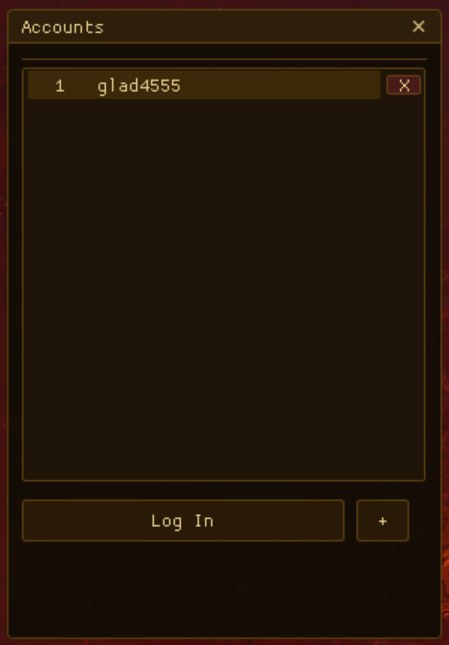
Players can save an account once and sign in without typing login and password on every game launch.
This plugin adds a saved accounts block to the login window. Players pick an account from the list and enter the game in a couple of clicks.
The login window gets a separate saved accounts list. Players can choose an existing account, log in quickly, or add a new one.
Open the protection settings file config.xml:
<saveaccounts value="True" accountsversion="1" />
On first launch, keep accountsversion="1". If after a wipe or data reset old saved accounts must become invalid, increase this value by 1.
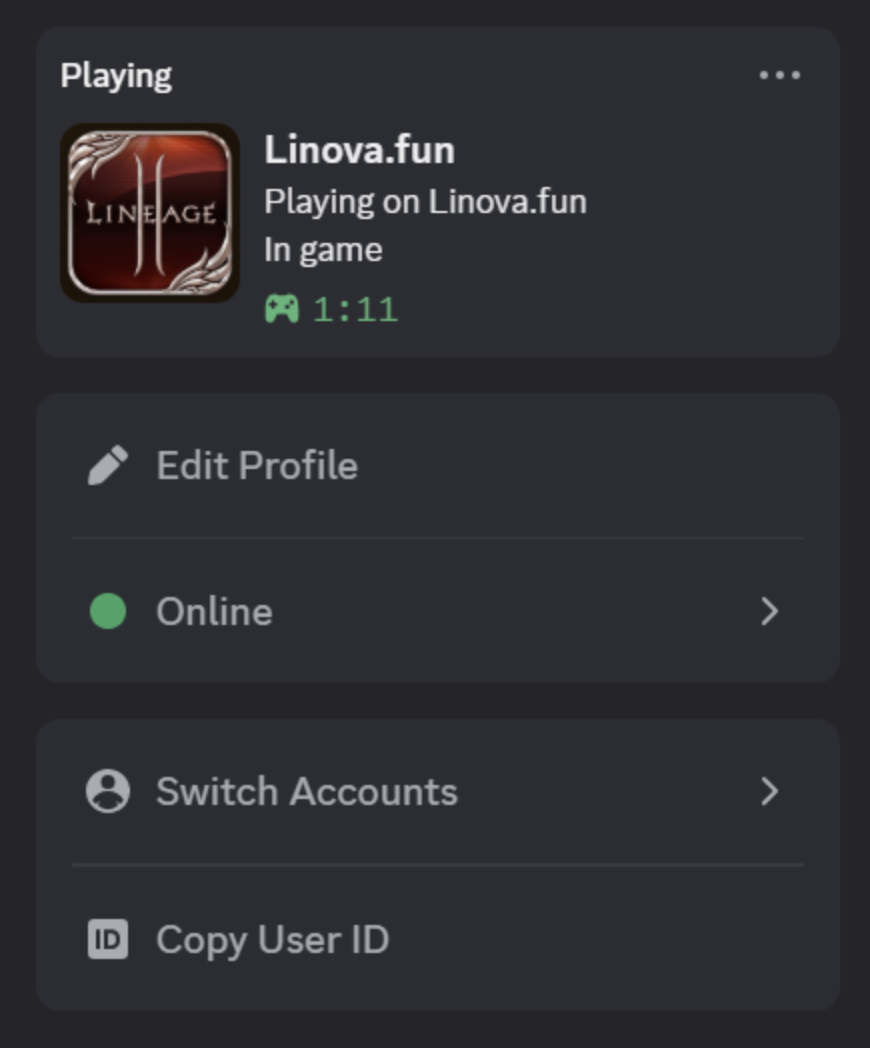
Discord integration helps you attract new players: friends can see that you are playing on your server. Once the game starts, the Discord status shows your server name, image, description and time in game.
Sign in to Discord on the web or create an account. Open the Developer Portal and click «New Application».
Give your project a name.
Fill in the general information, upload an icon and click «Save Changes». Copy and save the APPLICATION ID (example: 1000344216532160543).
In the left menu open Rich Presence → Art Assets, upload an image and note the ASSET ID (example: lineage_2_logo). Wait ~10 minutes for Discord to store the image.
Open the protection config config.xml — it contains a Discord block. Set your values:
<!-- Discord integration -->
<discord enabled="True" appid="1000344216532160543" biglogo="lineage_2_logo"
details="Playing Lineage 2" state="In Game"
biglogotext="" />
enabled="True" turns the integration on; appid — your APPLICATION ID; biglogo — your ASSET ID. Restart the lin2guard server to apply the new settings.
The config.xml file has the wrong encoding — it must be UTF-8. Re-save the file as UTF-8 (for example, with Notepad++).
Activity sharing is disabled in your Discord. Open User Settings (gear icon) → Activity Settings → Activity Privacy and enable everything.
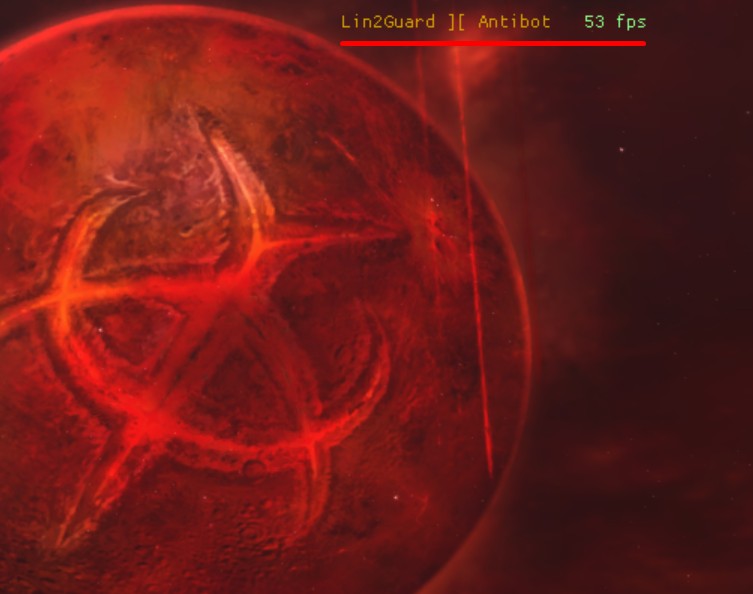
Draws text and FPS inside the game window.
Displays the text you set. Optionally you can change the text color, text size and position, and turn the text or FPS on or off.
Choose the modules you need now and add the rest later as your server grows.